Setup
Four steps, and no code at any point.
Requirements: WordPress 6.3 or higher and an administrator account that can install plugins.
Step 1: Get your Site ID
The Site ID is what links your WordPress site to a dashboard in Betterlytics.
If you don’t have an account yet, create one and add a dashboard for your domain. The Cloud Quick Start covers that in more detail. The Site ID is shown during onboarding, right after you create the dashboard.
To find it again later, open your dashboard, click Integration Setup in the sidebar, and copy the value under Your Site ID.
Step 2: Install the plugin
- In wp-admin, go to Plugins → Add New
- Search for Betterlytics
- Click Install Now, then Activate
The plugin is also listed on WordPress.org , where you can download it as a .zip and upload it under Plugins → Add New → Upload Plugin if your site can’t install from the directory.
The plugin then lives at Settings → Betterlytics in the wp-admin sidebar.
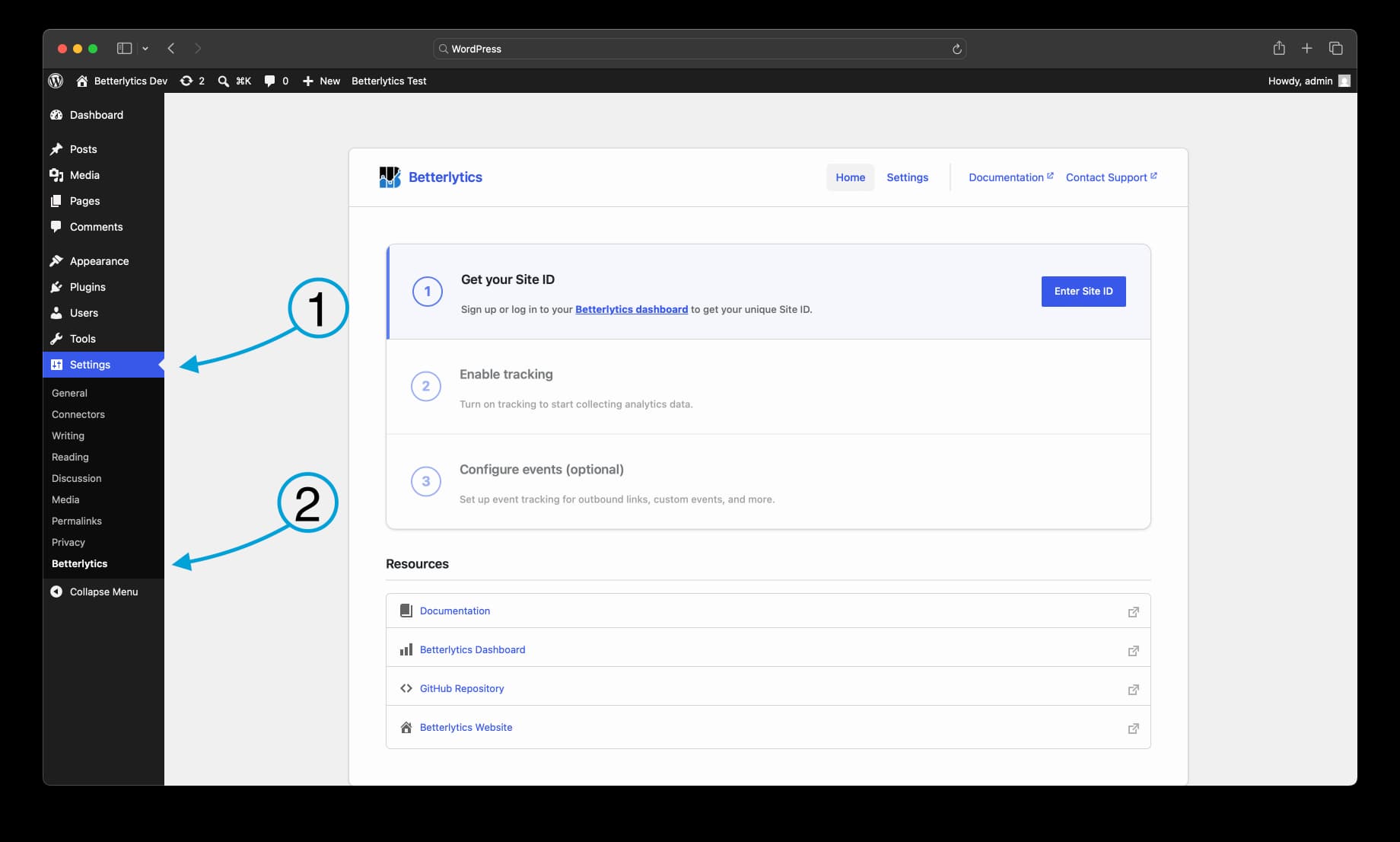
Step 3: Connect your site
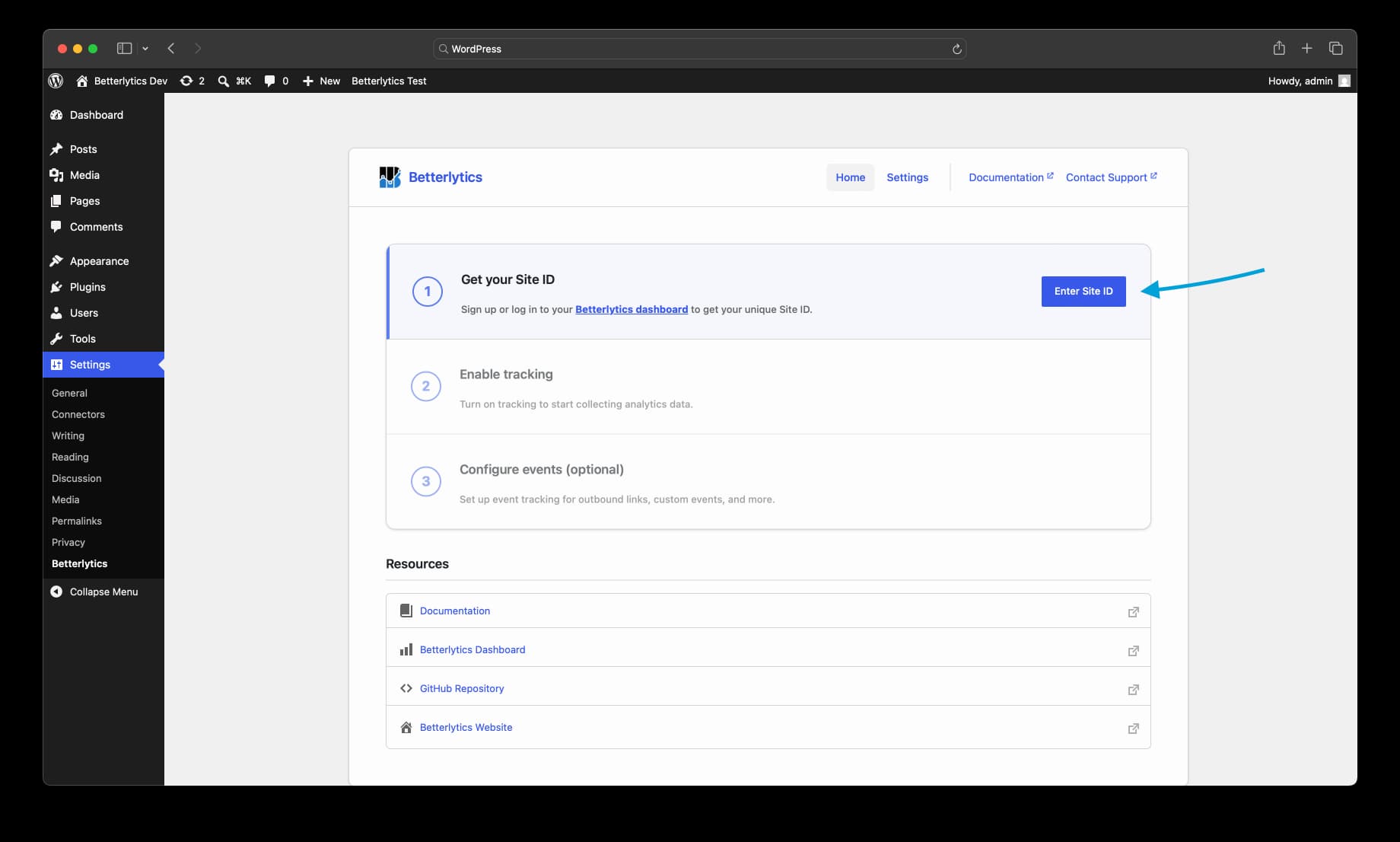
Open Settings → Betterlytics. The Home tab walks you through the remaining steps the first time you visit it.
On the Settings tab:
- Paste your Site ID into Site ID
- Tick Enable Tracking, which is off until you turn it on
- Click Save Settings
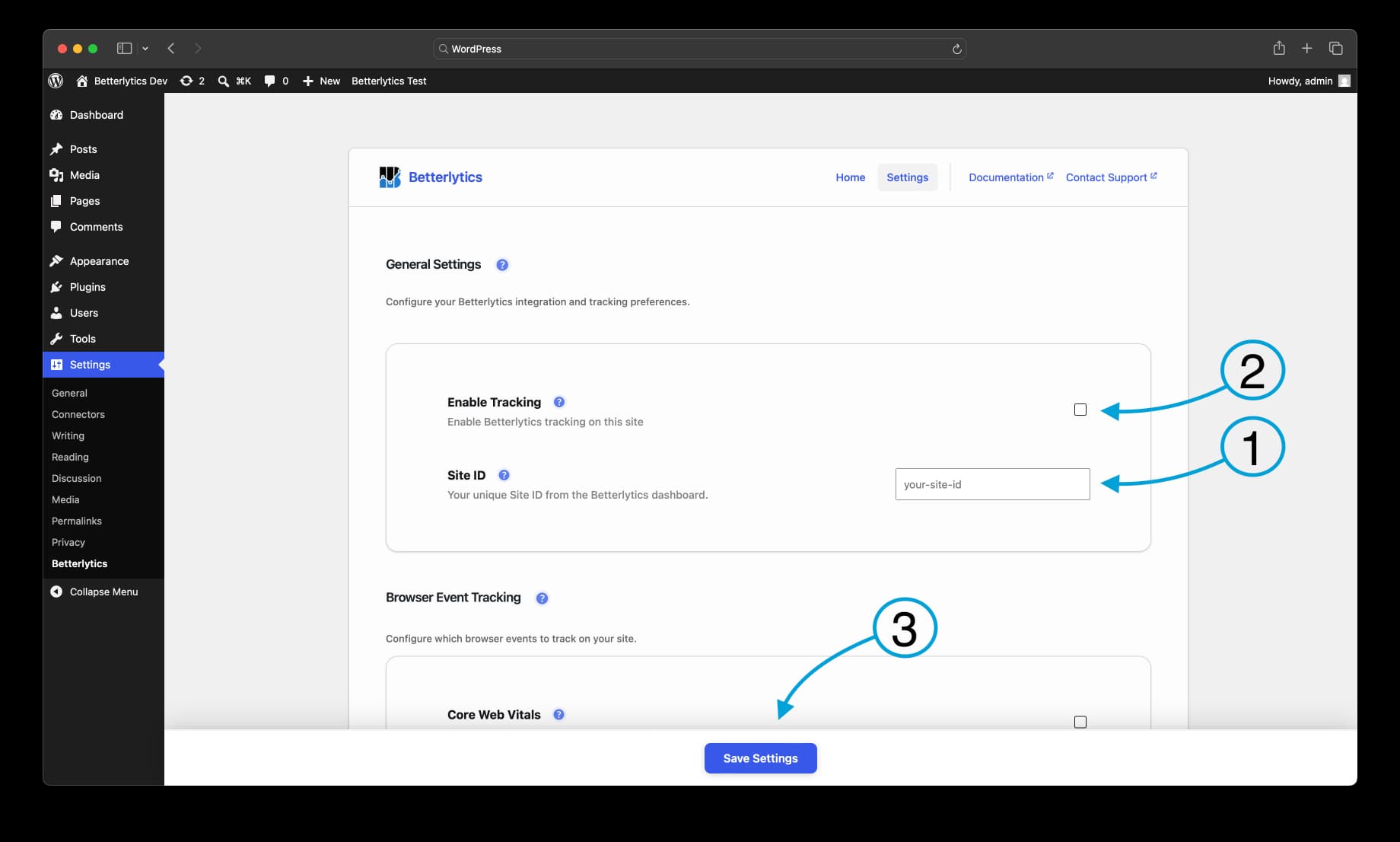
Your site is now connected. The tracking script is added to the <head> of every page, where it loads asynchronously, and data is recorded from the next visit onward.
Step 4: Confirm data is arriving
Visit your own site once, then open your Betterlytics dashboard. The visit should appear within a minute or two. The Resources section on the plugin’s Home tab links straight there.
Optionally, the Settings tab can also track outbound link clicks, Core Web Vitals, and clicks on specific elements. The Events guide covers each one.
Troubleshooting
No data in your dashboard
- Confirm Enable Tracking is ticked and that you saved the settings
- Check the Site ID for typos or a stray space. It is case-sensitive, and a wrong ID sends data nowhere
- Load your site in a private window and view the page source. You should see an
analytics.jsscript tag in the<head> - If you use a caching or optimization plugin, clear its cache so visitors get pages containing the script. Plugins that combine or defer scripts need
analytics.jsexcluded, covered under page caching and CDNs
Can’t find Settings → Betterlytics
Check that the plugin is active under Plugins → Installed Plugins. The settings page is only visible to administrators.
More causes, including CSP headers and ad blockers, are covered in the Troubleshooting guide.
Next Steps
- Settings - Every setting, its default, and its WP-CLI key
- Events - Outbound links, Core Web Vitals, and click events
- Configuration - Manage settings from WP-CLI or a deployment pipeline
- Dashboard Features - What your analytics can tell you, well beyond pageviews
Need Help?
- Discord Community - Real-time help from users and our team
- Contact Support - We’re always happy to help