Self-Hosting Setup
Betterlytics is designed to be simple to self-host while remaining privacy-focused and lightweight. This guide walks you through deploying Betterlytics on your own infrastructure using Docker.
All self-hosting files and configuration live in the betterlytics-selfhost repository.
Feature Availability
Betterlytics Cloud always runs the latest version, and new features launch there first. The self-hosted image is updated periodically from our stable releases, so it can temporarily lag behind what you see on Cloud or elsewhere in these docs.
A few features also depend on additional infrastructure and are not yet supported when self-hosting. For example, Session Replay requires S3-compatible object storage.
Before relying on a specific feature, check the cloud vs self-hosted comparison for its current self-hosted status. Getting the newest features is as simple as updating your instance when a new image is released.
Requirements
- Docker and Docker Compose installed on your server
- A domain name pointed to your server
- Ports 80 and 443 open (standalone mode) or a reverse proxy configured
Quick Start
1. Clone the Repository
git clone https://github.com/betterlytics/betterlytics-selfhost.git
cd betterlytics-selfhost
2. Run the Setup Script
The interactive setup script generates your .env file and any necessary Docker Compose overrides:
chmod +x setup.sh
./setup.sh
Prefer to configure manually? Copy .env.example to .env and fill in the values yourself.
3. Start the Containers
docker compose up -dYour Betterlytics instance will be available at your configured domain within a minute or two. Once it’s running, log in and follow the in-app integration guide to add the tracking script to your website.
Deployment Modes
Standalone (Default)
The default mode provisions TLS certificates automatically via Let’s Encrypt. Set HTTP_SCHEME=https (the default) and ensure ports 80 and 443 are accessible from the internet for ACME challenges and HTTPS traffic.
When using setup.sh, this is handled automatically. The script generates a docker-compose.override.yml that exposes the correct ports.
If you’re doing a manual setup, create the docker-compose.override.yml and add the following:
services:
  betterlytics-selfhost:
    ports:
      - "${BIND_ADDRESS}:${HTTPS_PORT}:443"
Behind a Reverse Proxy
If you already have a reverse proxy (Caddy, Nginx, Traefik, etc.), set HTTP_SCHEME=http and bind to localhost on a custom port so you don’t expose port 80 directly:
HTTP_SCHEME=http
BIND_ADDRESS=127.0.0.1
HTTP_PORT=5566
Then point your reverse proxy to that port.
Caddy
analytics.example.com {
    reverse_proxy 127.0.0.1:5566
}Geolocation
Betterlytics can resolve visitor IP addresses to countries and cities using MaxMind’s GeoLite2 database. This is optional but required for the geography section of your dashboard to work.
1. Create a MaxMind Account
Sign up for a free account at maxmind.com/en/geolite2/signup .
2. Generate a License Key
Once logged in, navigate to Account > Manage License Keys and click Generate New License Key.
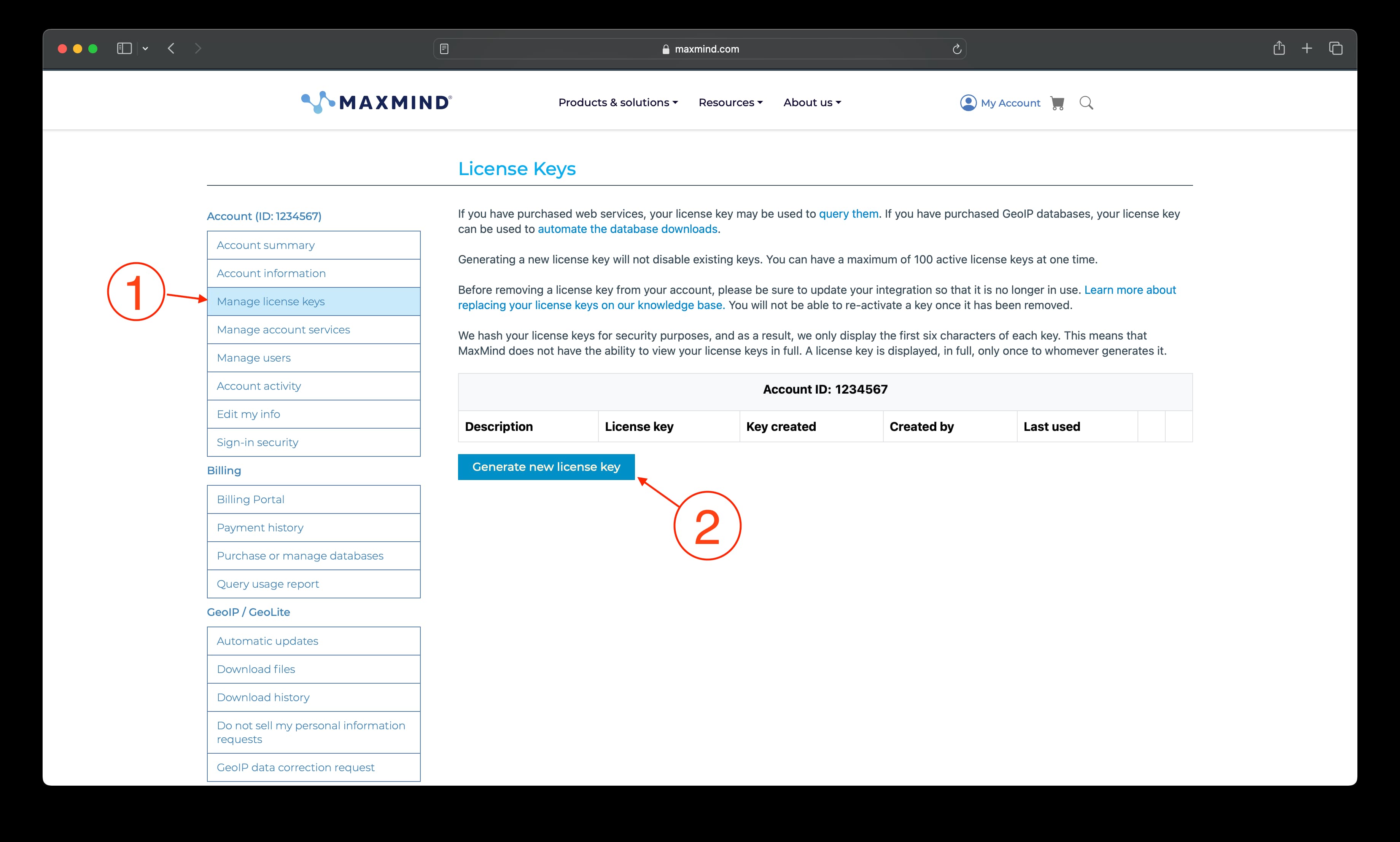
After completing the flow, you’ll be shown your license key. Copy it (you won’t be able to see it again).
3. Configure Your Environment
Add the following to your .env file:
ENABLE_GEOLOCATION=true
GEOLOCATION_MODE=full
MAXMIND_ACCOUNT_ID=your_account_id
MAXMIND_LICENSE_KEY=your_license_key
Your Account ID is displayed at the top of the MaxMind account portal.
| Variable | Default | Behavior |
|---|---|---|
ENABLE_GEOLOCATION | false | Master switch for geolocation. When disabled, no geo data is collected |
GEOLOCATION_MODE | country | country: country-level data only (~9 MB). full adds subdivision + city drill-down (~61 MB) |
4. Restart
docker compose down && docker compose up -dWhen geolocation is enabled, the GeoLite2 database is downloaded automatically and refreshed periodically. No manual updates are required. The initial download may take a moment on first run.
City & Subdivision Data
When GEOLOCATION_MODE=full is set (alongside ENABLE_GEOLOCATION=true), both subdivision (state/province/region) and city data are extracted from the MaxMind GeoLite2-City database. This is the same database used for country lookups, just a larger version (~61 MB vs ~9 MB).
Forward-only data: Enabling subdivisions mode only populates city and subdivision data for new events going forward. Existing events recorded before enabling this mode will only have country-level data. There is no way to backfill since IP addresses are never stored.
Updating
To update your self-hosted instance to the latest version:
docker compose pull
docker compose up -d
You can follow new releases on GitHub .
Troubleshooting
Containers won’t start
- Verify Docker and Docker Compose are installed and running
- Check that required ports (80/443 in standalone mode) are not in use
- Review container logs:
docker compose logs
HTTPS certificate not provisioning
- Ensure your domain’s DNS A record points to your server
- Ports 80 and 443 must be accessible from the internet
- Check the container logs for ACME errors:
docker compose logs
No analytics data appearing
- Verify the tracking script is installed on your website with the correct domain and site ID
- Check that the
/eventendpoint is reachable from the browser - Review backend logs:
docker compose logs
Need Help?
- Join our Discord community for help and discussions
- Open an issue on GitHub
Enjoying Betterlytics? Consider giving us a star on GitHub - it helps others discover the project!