Campaign Analytics
Track and analyze traffic from your marketing campaigns using UTM parameters. View campaign performance metrics, audience demographics, and detailed breakdowns to understand which campaigns drive the most engagement.
UTM Parameters
Campaigns are identified by the utm_campaign parameter in your URLs. Only the utm_campaign parameter is required for campaigns to appear on this page.
Example URL: https://yourwebsite.com/page?utm_campaign=spring-sale
Optional parameters like utm_source and utm_medium are highly recommended to provide additional context in the detailed breakdown views.
Accessing Campaign Analytics
Navigate to Dashboard > Campaigns to view your campaign performance data.
Campaign List View
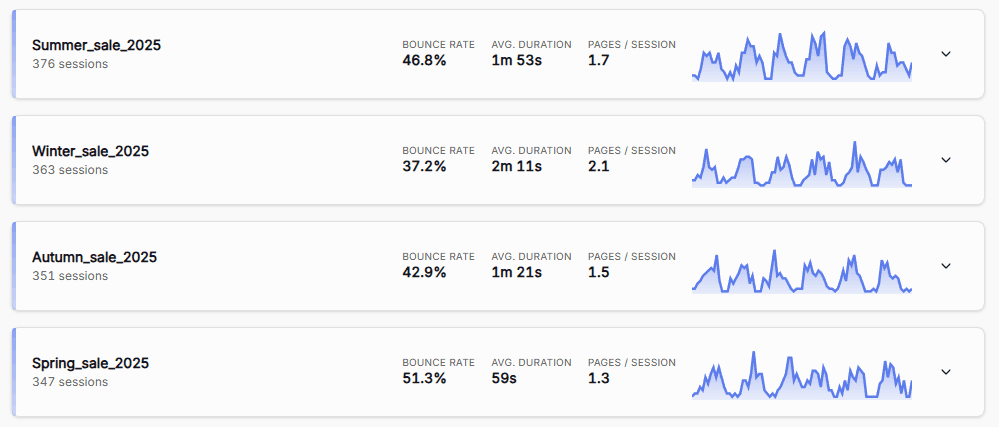
The Campaigns page displays a list of all your tracked campaigns. Each campaign appears as an expandable card showing key performance metrics.
Campaign Card Metrics
Each campaign card displays:
- Campaign Name - The utm_campaign parameter value used in your URLs
- Sessions - Total number of sessions attributed to this campaign
- Bounce Rate - Percentage of sessions that viewed only one page
- Avg. Session Duration - Average time visitors spent on your site from this campaign
- Pages per Session - Average number of pages viewed per session
- Trend Sparkline - Mini chart showing campaign performance over time
Campaign Details
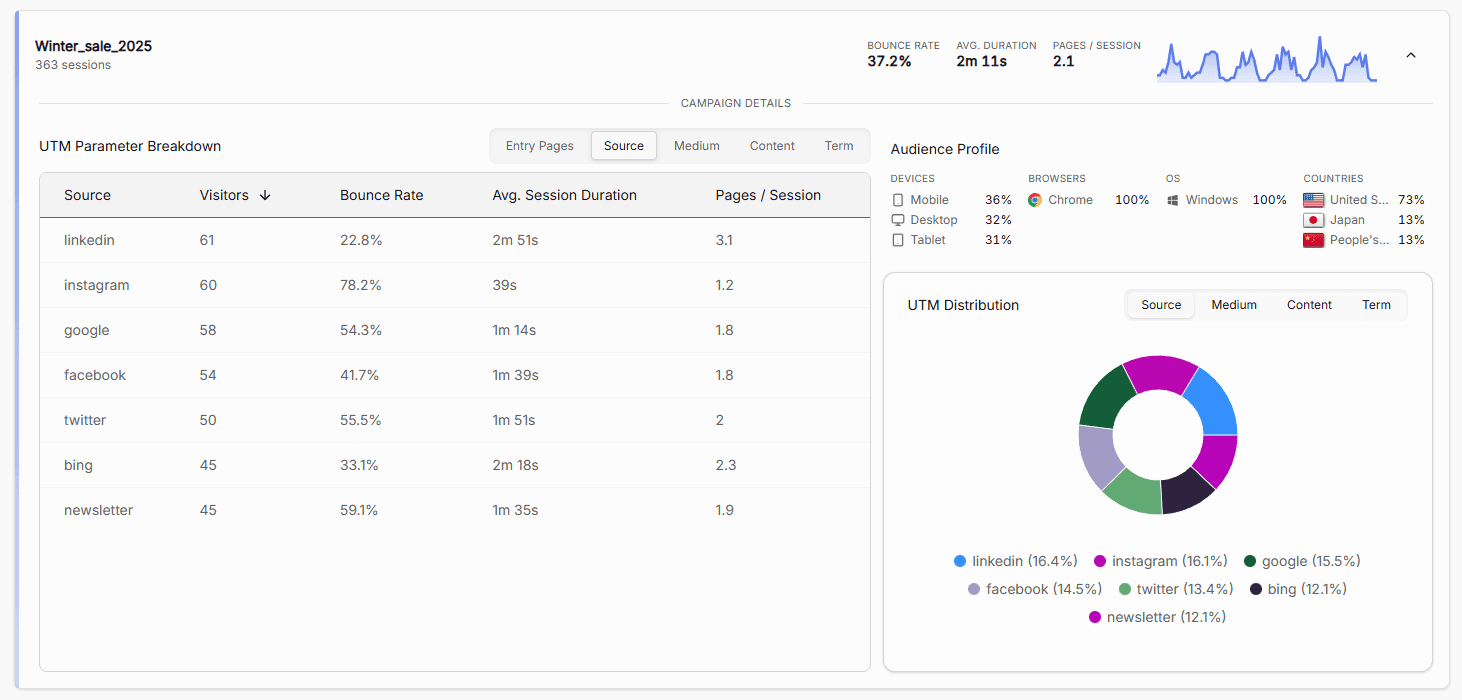
Click the campaign list entry to view detailed analytics for that specific campaign.
UTM Breakdown
The expanded view includes tabbed tables showing:
- Source Breakdown - Traffic sources (google, facebook, email, etc.) driving sessions to this campaign
- Landing Pages - Shows which pages visitors first arrive on from this campaign and highlights how each entry page performs.
Audience Profile
View the demographic and technical profile of visitors from each campaign:
- Devices - Mobile, tablet, laptop, desktop distribution
- Countries - Geographic distribution of campaign visitors
- Browsers - Which browsers campaign visitors use
- Operating Systems - OS preferences of campaign visitors
Tabbed Charts
Interactive charts provide lightweight visual breakdowns of UTM parameters and audience data for deeper insights into campaign performance.
Time Range Filtering
Use the global time range selector at the top of the page to analyze campaign performance for specific periods:
- Last 7 days
- Last 30 days
- Last 90 days
- Custom date ranges
Note: Advanced filtering options for campaigns are not yet available. Currently, you can only filter by time range. Campaign-specific filters will be added in a future update.
Troubleshooting
Data Not Appearing
- Check UTM parameters: Ensure
utm_campaignparameter is correctly added to your URLs - Verify implementation: Simply click on your UTM tagged link and check your Betterlytics Dashboard. Your visit should immediately appear in your campaign analytics.
The more UTM parameters you add to your campaign URLs, the richer your insights become. Don’t be shy with utm_source, utm_medium, utm_term, and utm_content!
Questions about campaign analytics? Join our Discord community for help!