WordPress Plugin
The official Betterlytics plugin connects your WordPress site to Betterlytics from wp-admin. Install it, paste your Site ID, turn on tracking, and your analytics start filling in. There is no snippet to add to your theme and nothing to re-apply after a theme update.
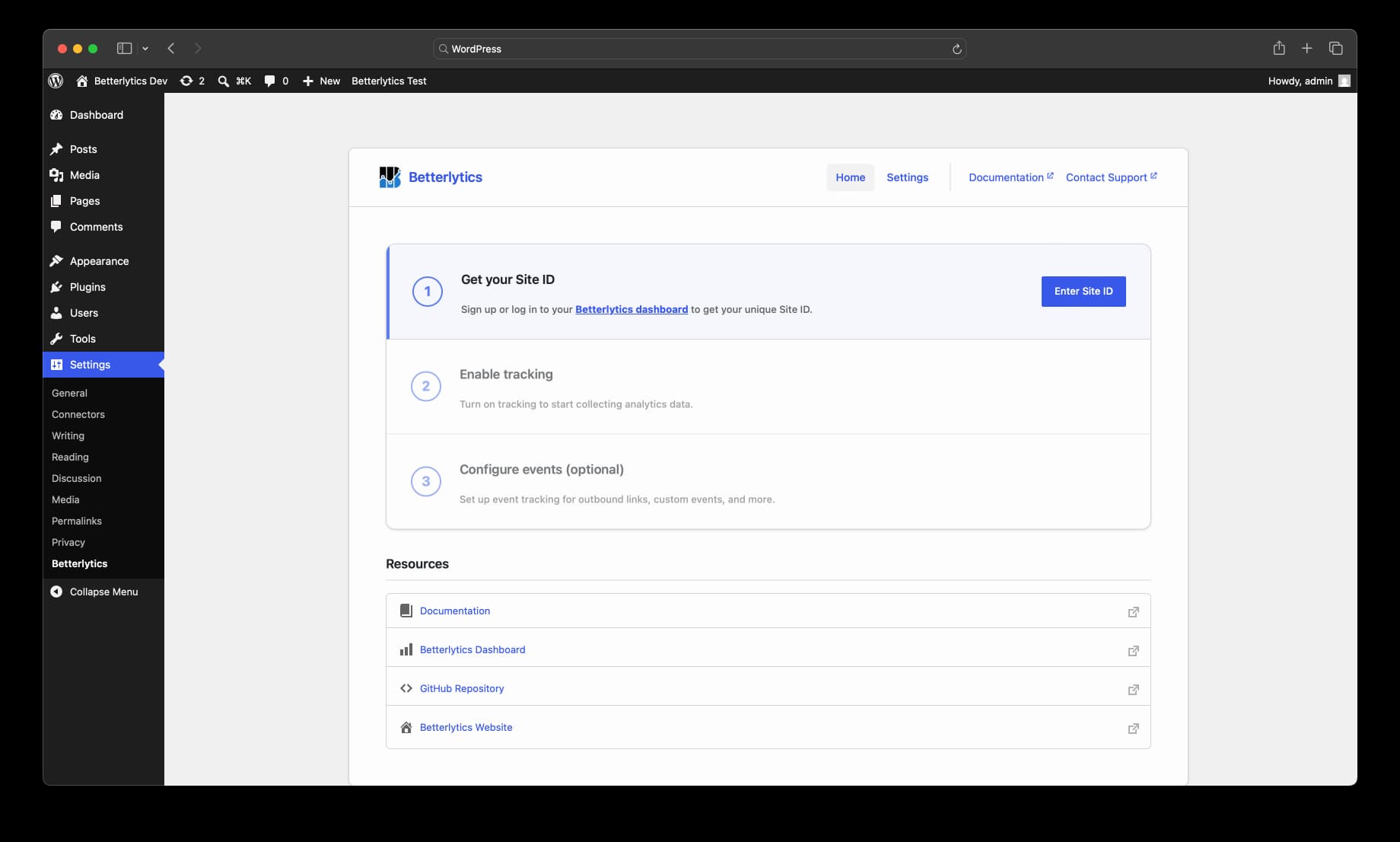
What the plugin tracks
Traffic and Engagement
Pageviews, visitors, and sessions, along with time on page, scroll depth, referrers, campaigns, devices, and geography. All of it from the moment tracking is on, with no configuration beyond your Site ID.
Outbound Links
See which external links your visitors click, recorded as either the destination domain or the full URL. Useful for measuring the traffic you send to partners and social platforms.
Core Web Vitals
Real-user performance data collected from your visitors’ browsers, rather than a synthetic lab run.
Click Events
Track clicks on any button or link by adding a single HTML attribute to it. No JavaScript, and it works in the block editor and most page builders.
Everything after the first card is one control on the plugin’s Settings tab. See Settings for the full list with defaults.
What the plugin doesn’t cover
Betterlytics has capabilities that are configured on the tracking script itself, and the plugin doesn’t expose them yet:
| Capability | Where it’s documented |
|---|---|
| Session replay | Session Replay |
| Error tracking | Error Tracking |
| Dynamic URL grouping | Dynamic URLs |
| Global properties on every event | Global Properties |
| Events with properties, or triggered by something other than a click | Custom Events |
Custom events are the exception you can have anyway: betterlytics.event() works against the script the plugin already loads, so events with properties are available from your own JavaScript. The rest are set through script attributes, so they need the tracking script installed manually instead of through the plugin. Turn Enable Tracking off first so you don’t load it twice.
Next Steps
- Setup - Install the plugin and connect your site
- Settings - Every setting, its default, and its WP-CLI key
- Events - Outbound links, Core Web Vitals, and click events
- Configuration - Manage settings from WP-CLI or a deployment pipeline
Need Help?
- Discord Community - Real-time help from users and our team
- Contact Support - We’re always happy to help